> ## Documentation Index
> Fetch the complete documentation index at: https://docs.envoi.no/llms.txt
> Use this file to discover all available pages before exploring further.
# Correcting mistakes
> How to correct mistakes in the books: credit note, reversal and manual journal entry.
In Envoi, what has been posted cannot be changed or deleted. Mistakes are corrected with a new entry. The Norwegian Bookkeeping Act (bokføringsloven) § 9 says the same: a correction must be made with a new, documented posting, where the original posting is reversed in full.
How you correct depends on what is wrong.
## Where the correction belongs
| Mistake in | How to correct it |
| - | - |
| An invoice you have sent | Create a [credit note](/en/sales/credit-notes) in Operations |
| A credit note | Correct it in Operations, where the credit note was made |
| A supplier invoice | Ask the supplier for a credit note |
| A payment, a manual journal entry, a withdrawal or deposit, or the opening balance | Reverse the entry, and post the right entry |
In Specifications, Envoi shows on each entry where the correction belongs, with a link there.
## Reverse an entry
Reverse creates a new entry that is the opposite of the original, so the two cancel each other out. Both remain in the books.
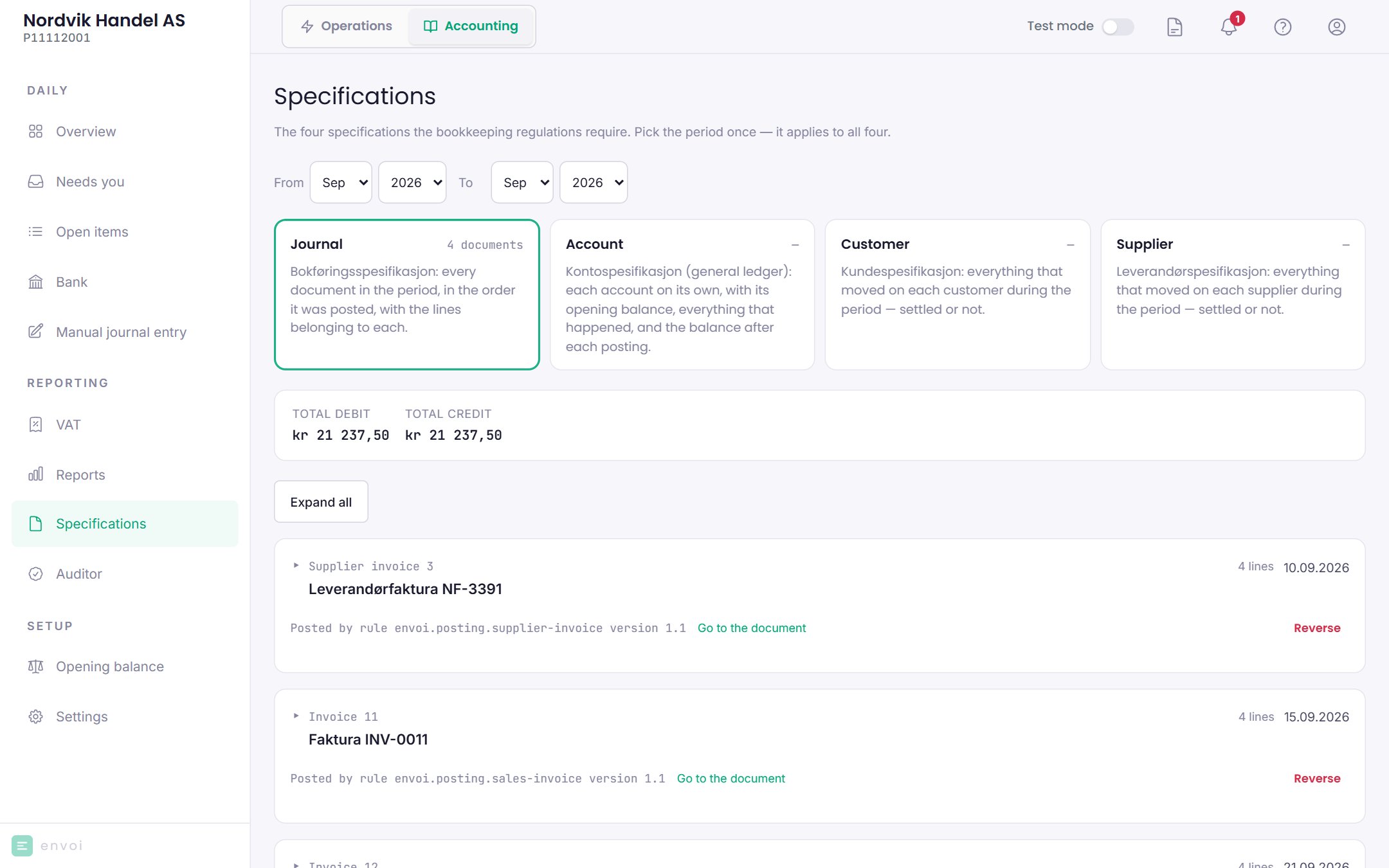
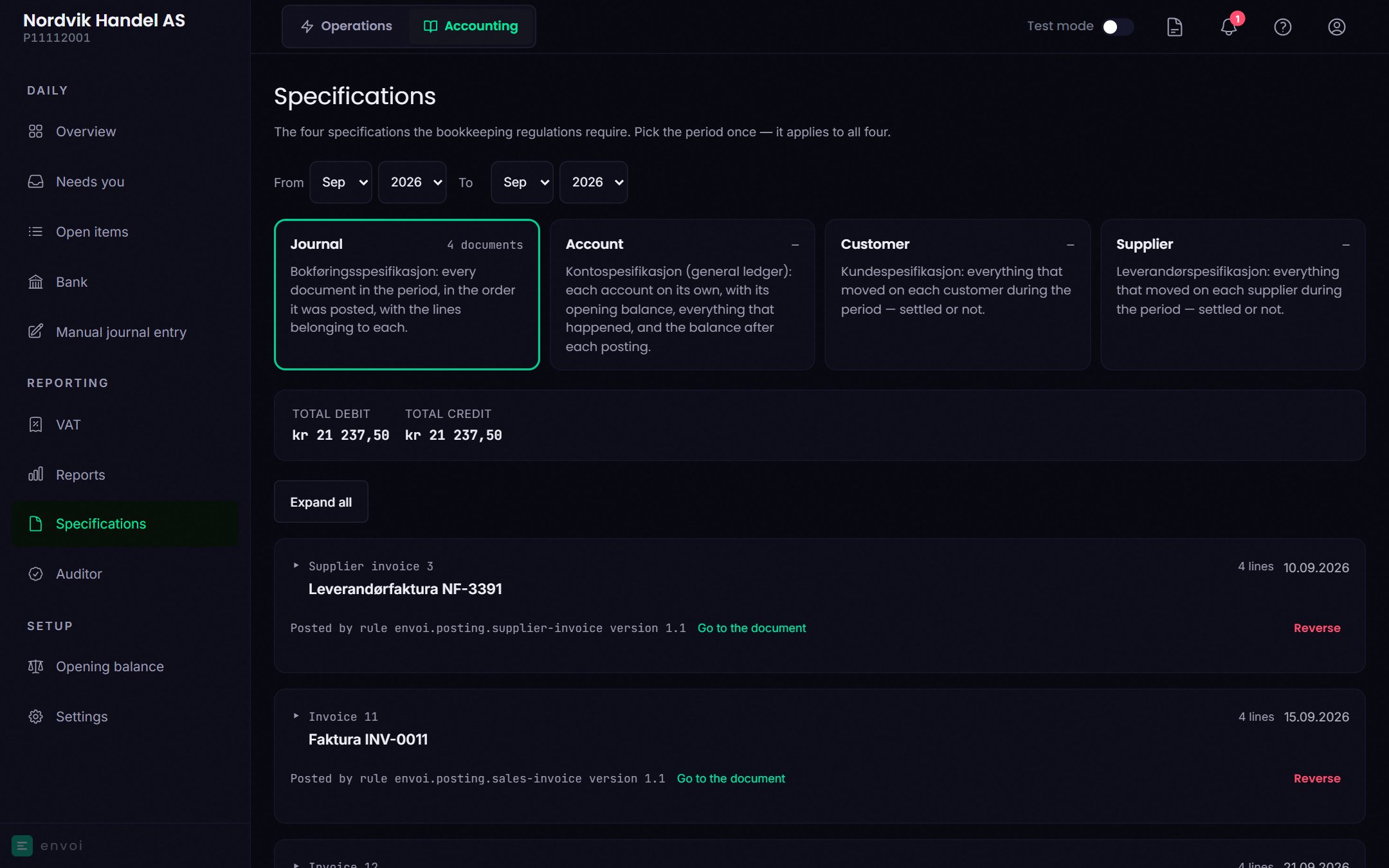
Go to **Accounting**, **Specifications**, the **Journal** tab. Choose the period the entry is in.
Choose **Reverse** on the entry. The option is only there on entries that can be reversed.
Fill in **Reason**. It stays in the books together with the reversal.
Choose **Reverse the entry**. The reversal is posted with today's date, and the original entry is marked **Reversed**.
Choose **Post the right entry** to post what should have been posted, as a manual journal entry.
 The reversal cannot be posted if the current month is closed.
Reversing a payment changes nothing in Operations. If you reverse a customer payment, the invoice still shows as paid in Operations, while the books show the claim as open again.
## Post a manual journal entry
With a manual journal entry you post the lines yourself, for example a correction or something Envoi does not post automatically.
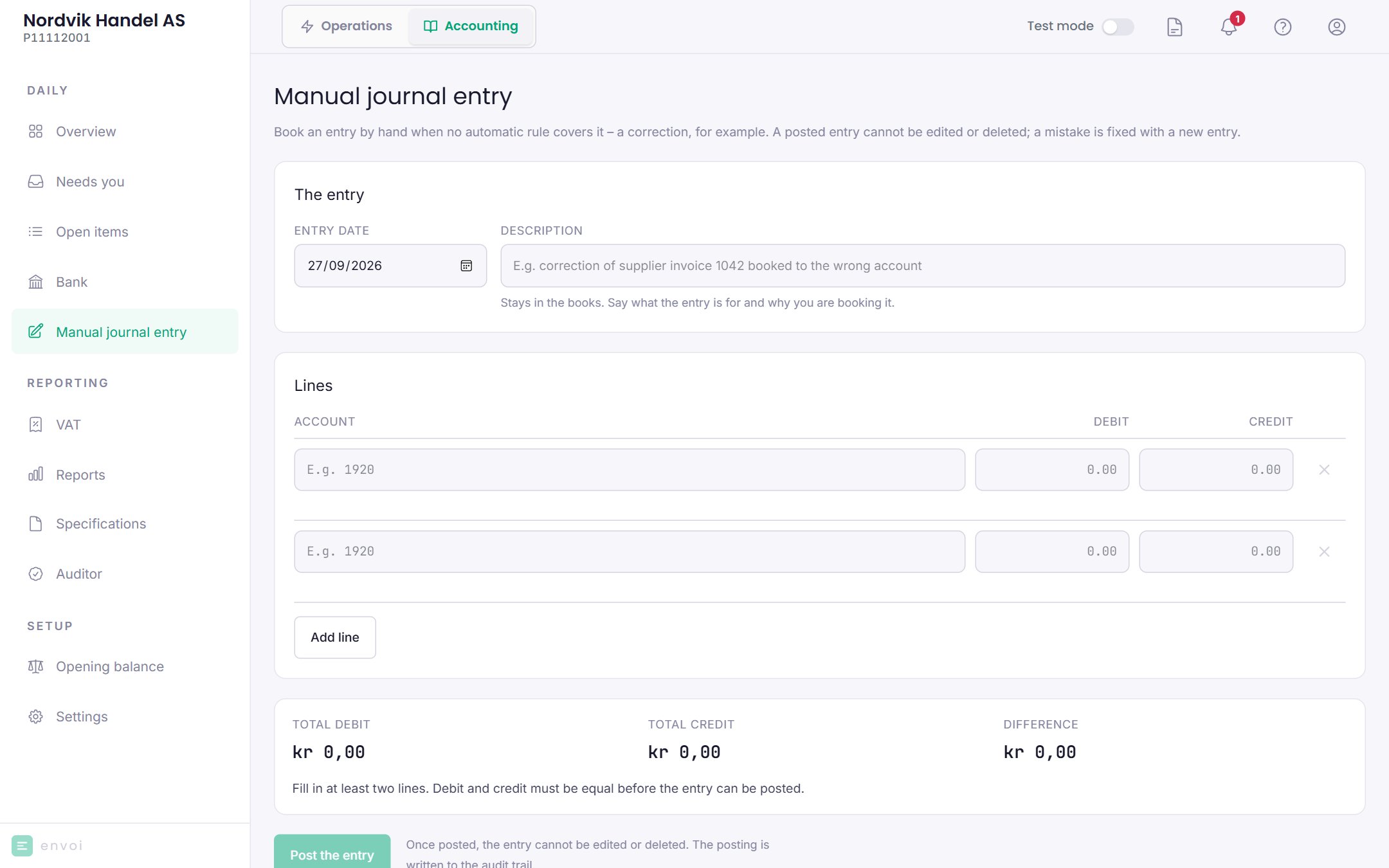
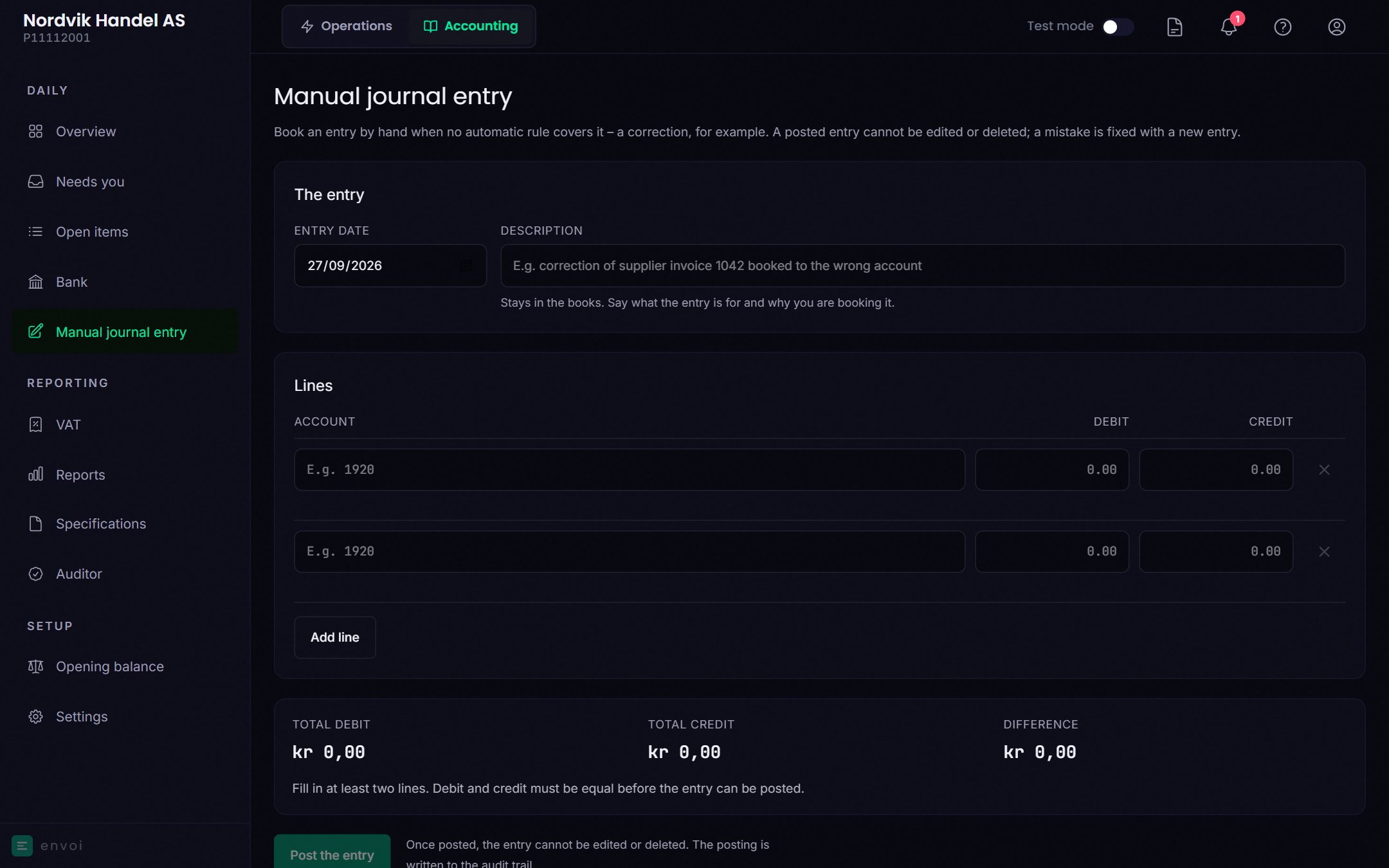
Go to **Accounting**, **Manual journal entry**. If you come from **Correct this entry** or **Post the right entry**, the entry you are correcting is already chosen.
Choose the **Entry date** and write a **Description**. The description stays in the books.
Under **Corrects entry (optional)** you can choose the entry you are correcting. Both entries then refer to each other in the journal.
Add at least two lines. Search for an account by number or name, also with everyday words like "rent". Under **Suggestions** you see the accounts you used most recently.
Once you have chosen an account, Envoi shows what debit and credit mean for that account, for example "money in" and "money out" for the bank account. Each line uses one column, debit or credit.
When **Total debit** and **Total credit** are equal, choose **Post the entry**.
The reversal cannot be posted if the current month is closed.
Reversing a payment changes nothing in Operations. If you reverse a customer payment, the invoice still shows as paid in Operations, while the books show the claim as open again.
## Post a manual journal entry
With a manual journal entry you post the lines yourself, for example a correction or something Envoi does not post automatically.
Go to **Accounting**, **Manual journal entry**. If you come from **Correct this entry** or **Post the right entry**, the entry you are correcting is already chosen.
Choose the **Entry date** and write a **Description**. The description stays in the books.
Under **Corrects entry (optional)** you can choose the entry you are correcting. Both entries then refer to each other in the journal.
Add at least two lines. Search for an account by number or name, also with everyday words like "rent". Under **Suggestions** you see the accounts you used most recently.
Once you have chosen an account, Envoi shows what debit and credit mean for that account, for example "money in" and "money out" for the bank account. Each line uses one column, debit or credit.
When **Total debit** and **Total credit** are equal, choose **Post the entry**.
 The Norwegian Bookkeeping Regulations (bokføringsforskriften) § 5-12 require a mutual reference between the new entry and the original when something is corrected. That is what **Corrects entry** does.
## Good to know
* A manual journal entry has no VAT code, customer or supplier on the lines, and you cannot add attachments.
* The date cannot be in a closed month.
* If you are unsure which accounts to use, ask your accountant before you post.
The Norwegian Bookkeeping Regulations (bokføringsforskriften) § 5-12 require a mutual reference between the new entry and the original when something is corrected. That is what **Corrects entry** does.
## Good to know
* A manual journal entry has no VAT code, customer or supplier on the lines, and you cannot add attachments.
* The date cannot be in a closed month.
* If you are unsure which accounts to use, ask your accountant before you post.