> ## Documentation Index
> Fetch the complete documentation index at: https://docs.envoi.no/llms.txt
> Use this file to discover all available pages before exploring further.
# Suppliers
> The supplier register and the default expense account.
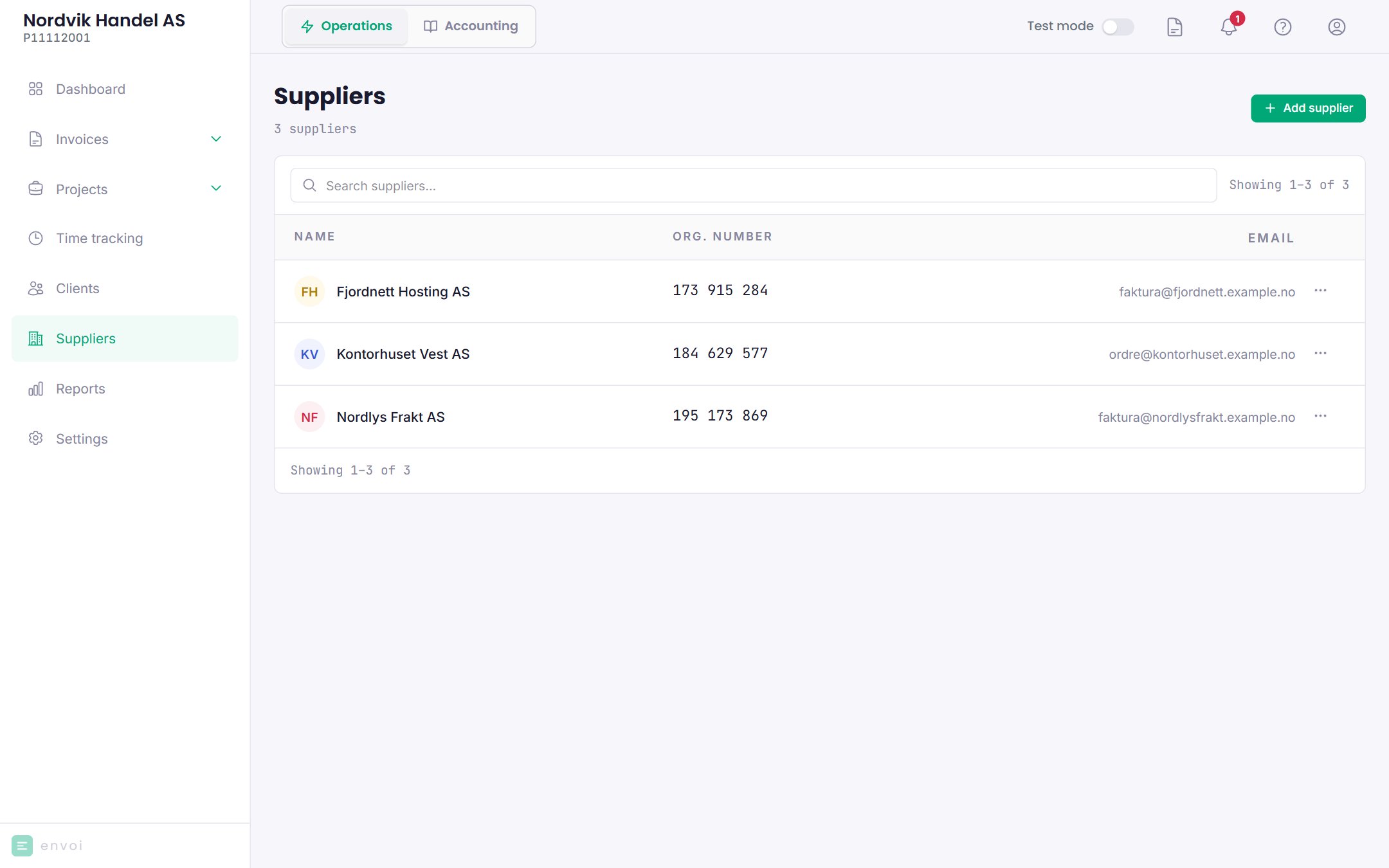
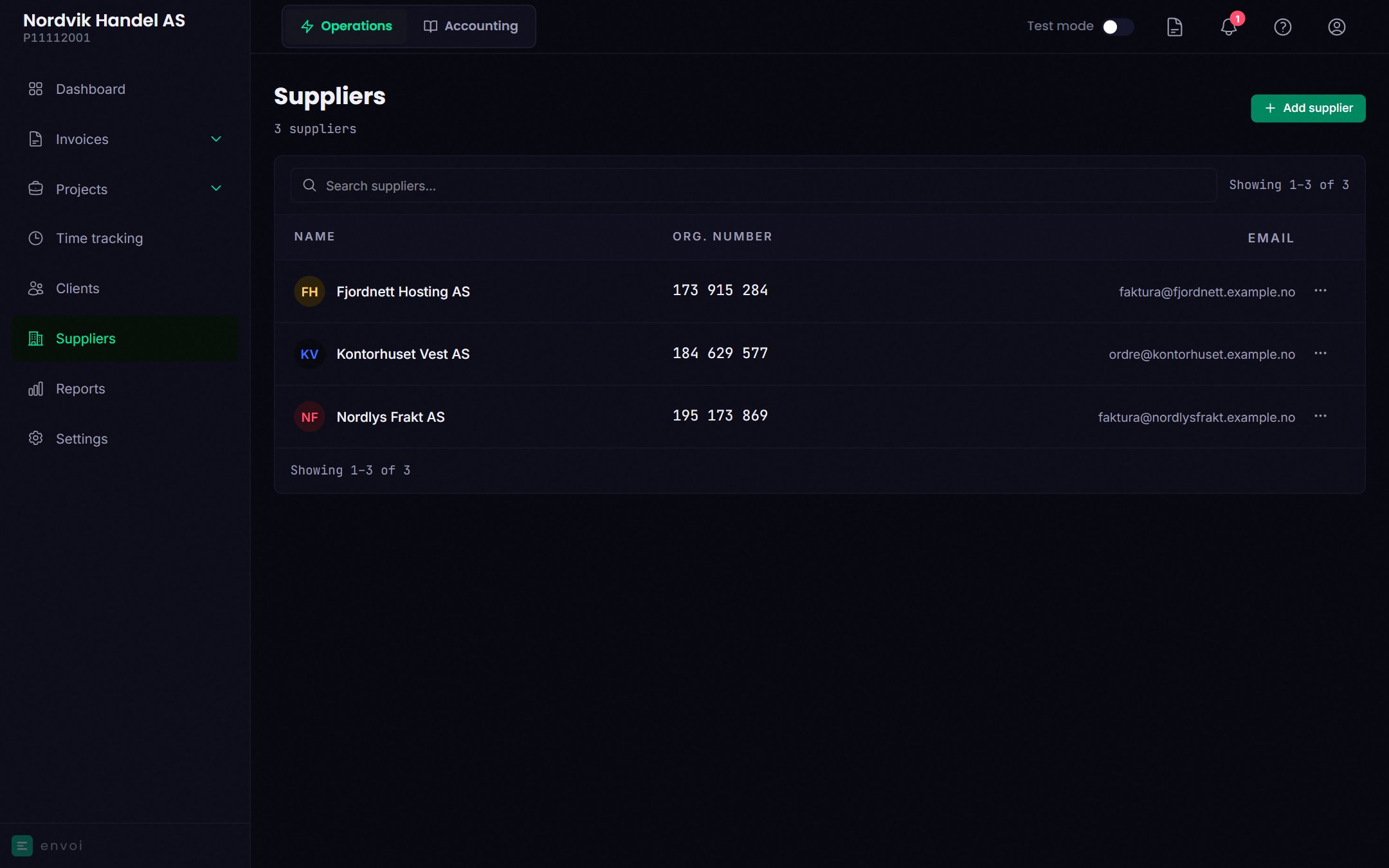
Your suppliers are under **Suppliers**. You must be an owner or administrator.
 ## Suppliers are often created for you
When you confirm a [received invoice](/en/kjop/mottatte-fakturaer), Envoi links it to a supplier you already have with the same organisation number. If there is none, the supplier is created automatically with the name, organisation number, email and account number from the invoice.
## Add a supplier yourself
Choose **Add supplier**.
Search by company name or organisation number. Envoi fetches the name, organisation number and address from the Brønnøysund Register Centre (Brønnøysundregistrene).
Email, phone, contact person, account number and default expense account are optional.
Choose **Add supplier**.
## Default expense account
If accounting is turned on, you choose a **Default expense account** for each supplier, for example an account for software, shipping or office supplies. Invoices from the supplier are posted automatically to this account.
You can choose among the expense accounts 4000 to 7999 in the chart of accounts. Search by number or name, also with everyday words like "rent".
Without a default expense account, the supplier invoices stay under [Needs you](/en/regnskap/automatisk-bokforing#needs-you) until the account is set. Set the account, and choose **Try again** there.
## The supplier page
Click a supplier to see the details and the invoices you have received from it. Choose **Edit** to change the details.
## Delete a supplier
Choose **Delete** in the menu on the supplier in the list. A supplier with received invoices, or that is the default supplier on a project, cannot be deleted.
## Suppliers are often created for you
When you confirm a [received invoice](/en/kjop/mottatte-fakturaer), Envoi links it to a supplier you already have with the same organisation number. If there is none, the supplier is created automatically with the name, organisation number, email and account number from the invoice.
## Add a supplier yourself
Choose **Add supplier**.
Search by company name or organisation number. Envoi fetches the name, organisation number and address from the Brønnøysund Register Centre (Brønnøysundregistrene).
Email, phone, contact person, account number and default expense account are optional.
Choose **Add supplier**.
## Default expense account
If accounting is turned on, you choose a **Default expense account** for each supplier, for example an account for software, shipping or office supplies. Invoices from the supplier are posted automatically to this account.
You can choose among the expense accounts 4000 to 7999 in the chart of accounts. Search by number or name, also with everyday words like "rent".
Without a default expense account, the supplier invoices stay under [Needs you](/en/regnskap/automatisk-bokforing#needs-you) until the account is set. Set the account, and choose **Try again** there.
## The supplier page
Click a supplier to see the details and the invoices you have received from it. Choose **Edit** to change the details.
## Delete a supplier
Choose **Delete** in the menu on the supplier in the list. A supplier with received invoices, or that is the default supplier on a project, cannot be deleted.