> ## Documentation Index
> Fetch the complete documentation index at: https://docs.envoi.no/llms.txt
> Use this file to discover all available pages before exploring further.
# Your first invoice
> Create an invoice, send it to the customer and record the payment.
## Create the invoice
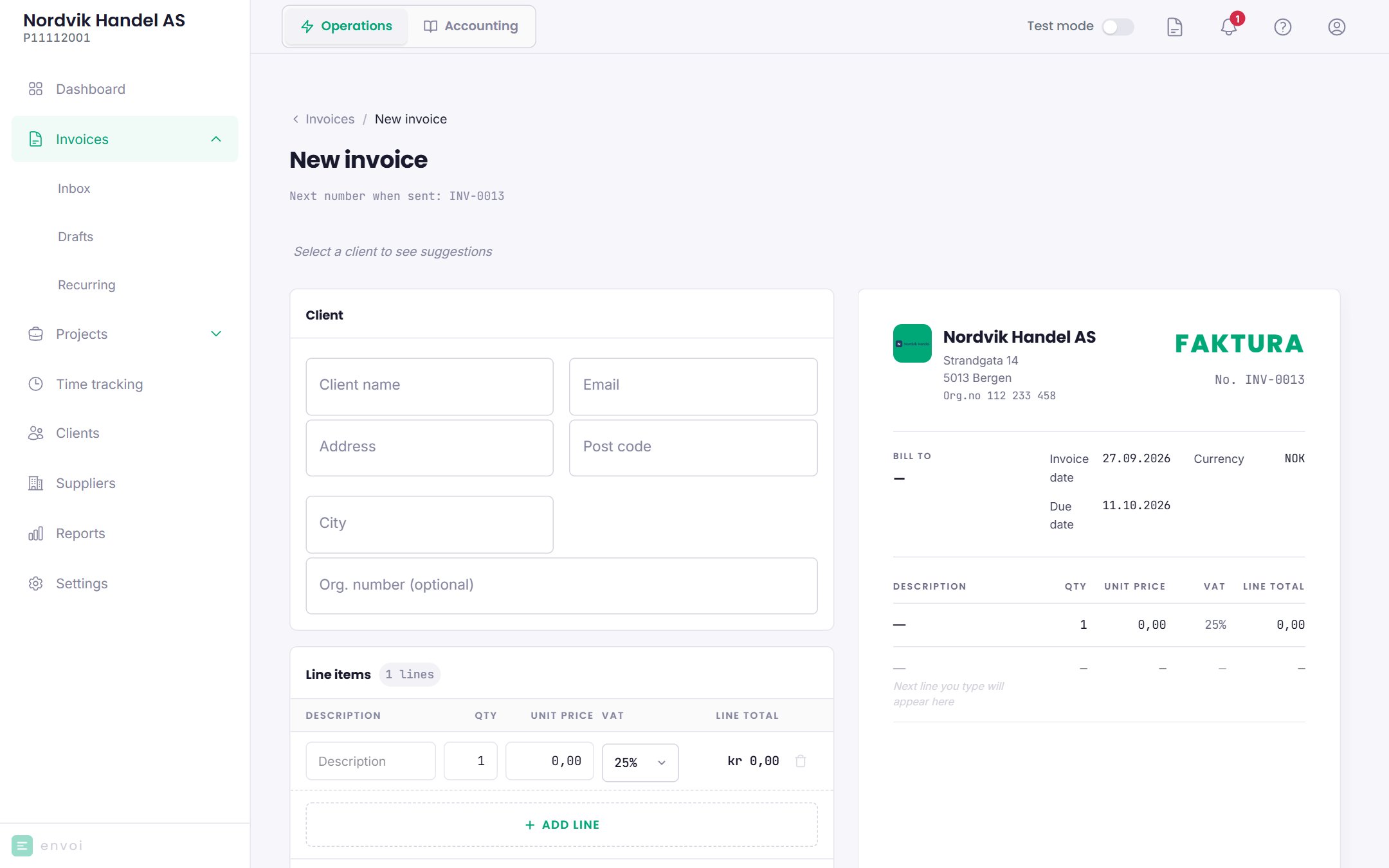
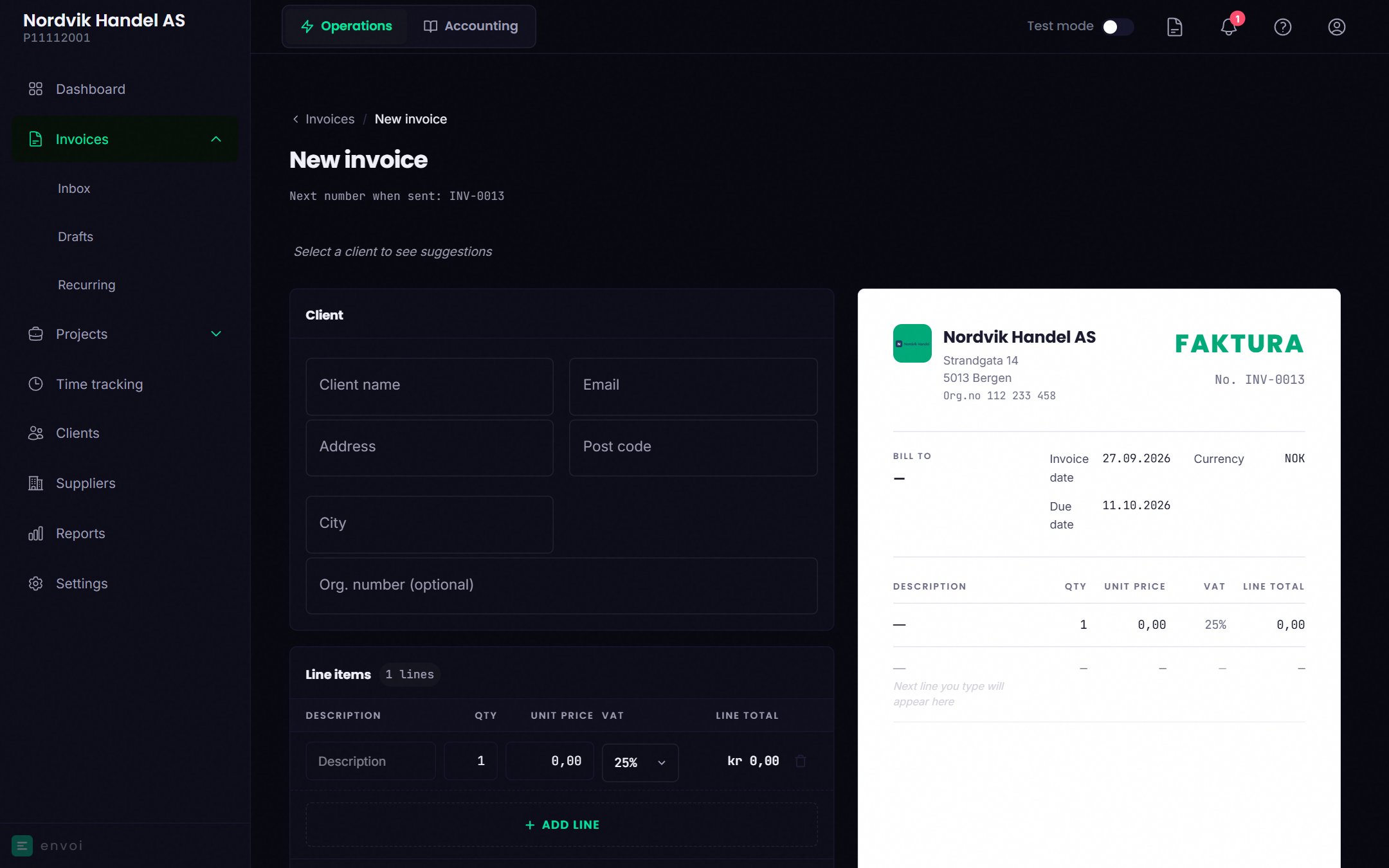
Choose **New invoice** on the dashboard, or go to **Invoices**.
Choose a customer you already have, or type in a new one. New customers are saved when the invoice is saved.
If you have invoiced the customer before, Envoi shows suggested lines. **Previous** fetches the lines from the last invoice, and **Saga** suggests lines based on the customer's last 10 invoices.
Fill in the description, quantity, price and VAT for each line. Every line must have a VAT code before you can send.
**Save as draft** lets you finish later. **Send invoice** gives the invoice a number and sends it as a PDF by email to the customer.
 The customer must have an email address for Envoi to send the invoice. If the customer has none, you can download the PDF and send it yourself.
Every invoice gets a KID number automatically. From the invoice you can also choose **Download PDF** or **Download EHF**.
Sending EHF invoices through the Peppol network is coming before 2027. Until then, you can download the EHF file and send it yourself.
## When the customer pays
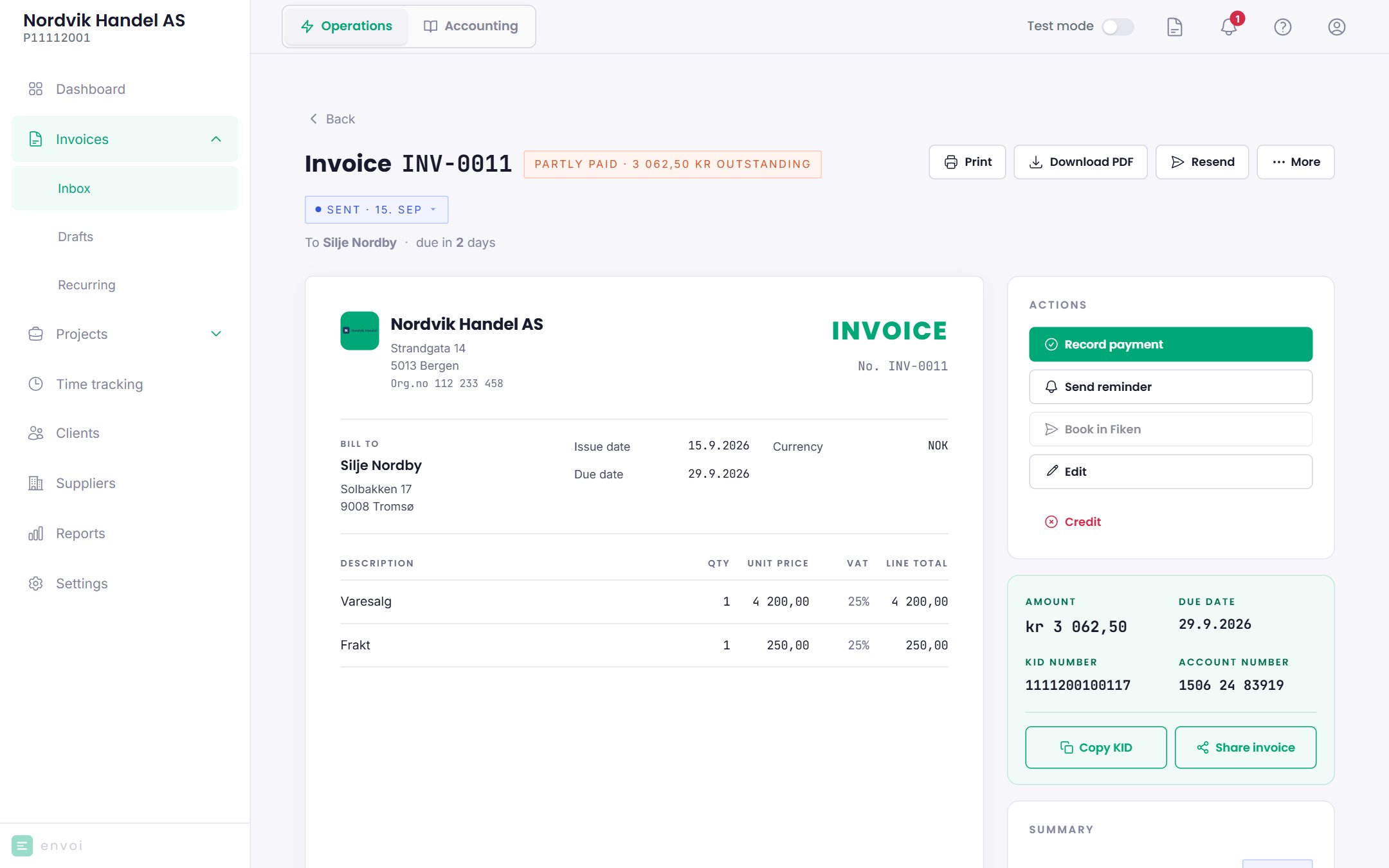
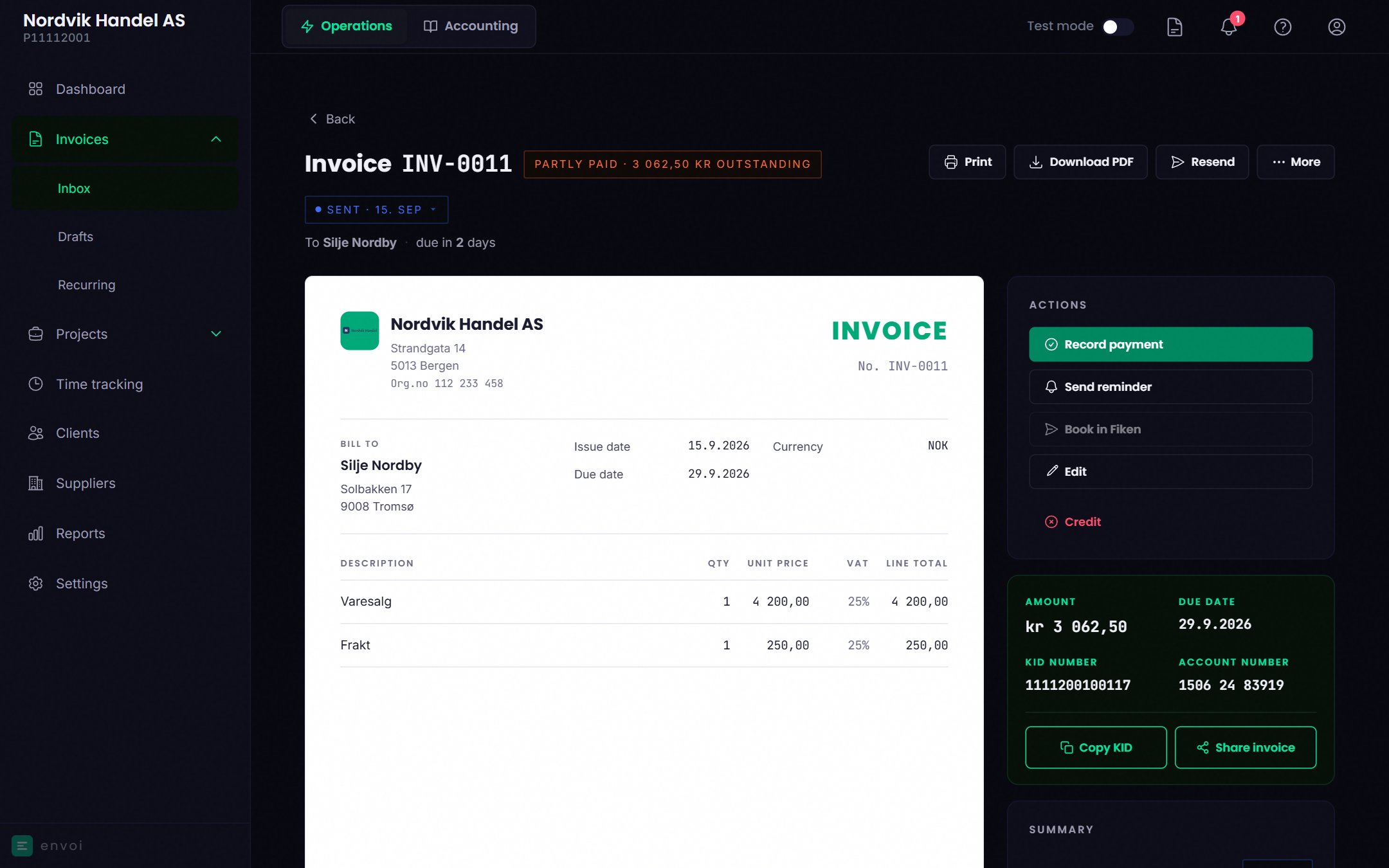
Open the invoice and choose **Record payment**. Enter the date the money came in and the amount.
* If the customer pays the full amount, the invoice is marked as paid.
* If the customer pays only part of it, the invoice is marked **Partly paid**, with the amount that remains.
The customer must have an email address for Envoi to send the invoice. If the customer has none, you can download the PDF and send it yourself.
Every invoice gets a KID number automatically. From the invoice you can also choose **Download PDF** or **Download EHF**.
Sending EHF invoices through the Peppol network is coming before 2027. Until then, you can download the EHF file and send it yourself.
## When the customer pays
Open the invoice and choose **Record payment**. Enter the date the money came in and the amount.
* If the customer pays the full amount, the invoice is marked as paid.
* If the customer pays only part of it, the invoice is marked **Partly paid**, with the amount that remains.
 If accounting is turned on, Envoi posts the invoice and the payment automatically. See [Automatic bookkeeping](/en/regnskap/automatisk-bokforing).