> ## Documentation Index
> Fetch the complete documentation index at: https://docs.envoi.no/llms.txt
> Use this file to discover all available pages before exploring further.
# Customers
> The customer register: businesses and private individuals, and what the type means.
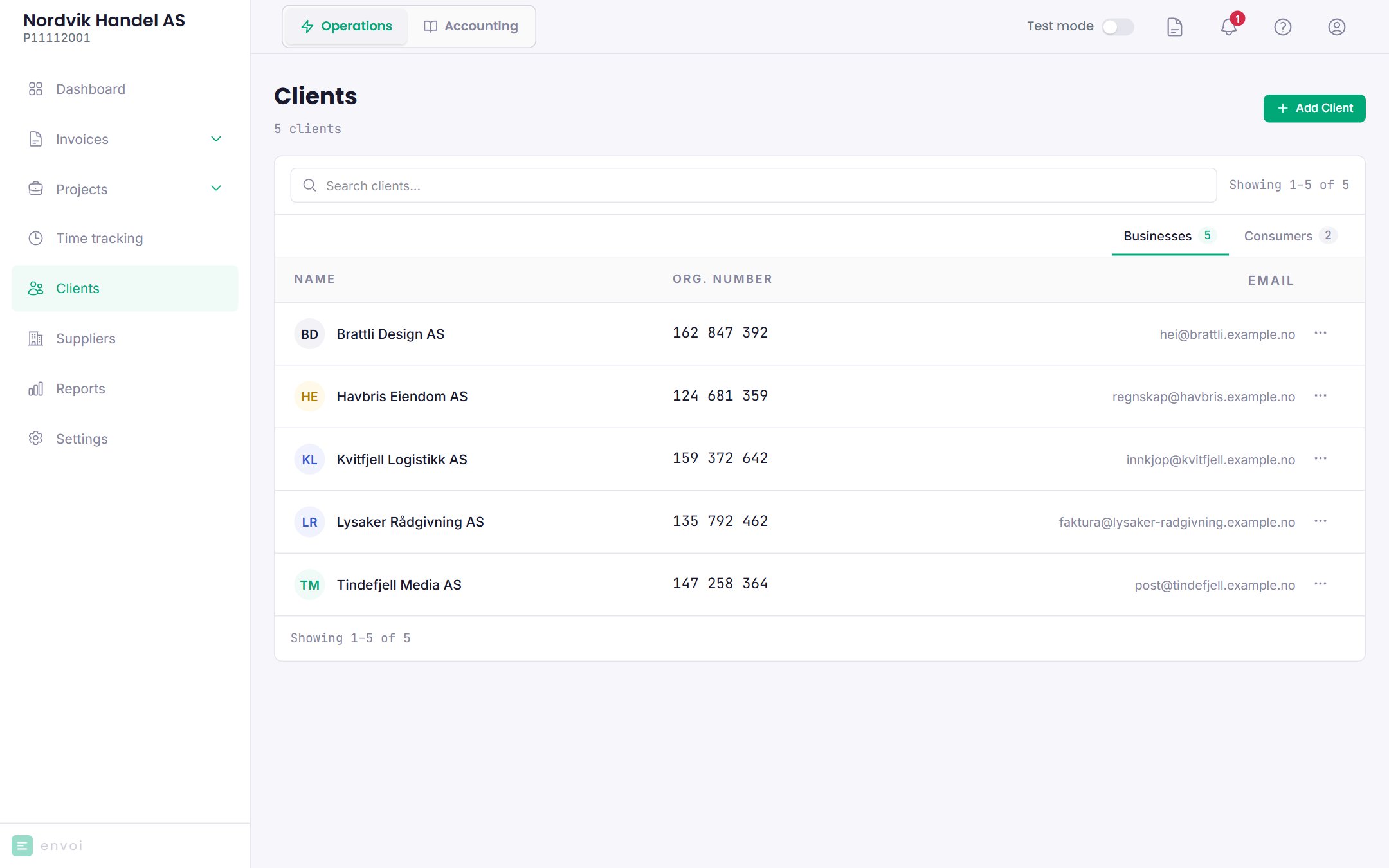
Your customers are under **Clients**. The list has two tabs: **Businesses** and **Consumers**.
 ## Business or private individual
When you add a customer, you first choose the type. The type controls several things:
| | Business | Private individual |
| - | - | - |
| Organisation number | Required for companies in Norway | None |
| Email | Optional | Optional |
| Fee on reminders | A fixed amount, once | A reminder fee, within what the law allows |
| Automatic reminders | Yes | No, reminders are sent manually |
See [Reminders and collection warnings](/en/salg/purring-og-inkassovarsel) for the details.
## Add a customer
1. Choose **Add client**, and **Business**.
2. Search by company name or organisation number. Envoi fetches the name, organisation number and address from the Brønnøysund Register Centre (Brønnøysundregistrene). If you cannot find the company, choose **Can't find the company? Enter it yourself**.
3. Add email, phone and contact person if you like.
4. Save.
1. Choose **Add client**, and **Consumer**.
2. Fill in the name, and email, phone and address if you like.
3. Save.
The customer can also be in another country. Choose **Country**. For a company abroad, you enter the name and address yourself, and can add a VAT number. EHF can only be created for companies in Norway.
Customers are also added automatically when you save an invoice or a quote to a new customer.
Without an email address, Envoi cannot send invoices to the customer by email. You can then download the PDF and send it yourself.
## The customer page
Click a customer to see the customer details and the customer's invoices. From here you can also create a new invoice to the customer. Choose **Edit** to change the details, the type or a custom reminder fee for the customer.
## Delete a customer
Choose **Delete** in the menu on the customer in the list. A customer used by invoices, quotes, recurring invoices or projects cannot be deleted. Envoi shows what the customer is used by.
## Import customers
If you have your customers in another system, you can import them under **Settings**, **Import**. You must be an owner or administrator.
* CSV and Excel (XLSX) are read directly, with columns such as name, organisation number, email, phone and address.
* PDF and images are read by Saga.
* Up to 500 customers at a time.
You go through the list and remove those you do not want before you import. Customers with an organisation number that already exists are skipped. Rows with an invalid organisation number or a country Envoi does not recognise are not imported, and are shown in a list.
## Who sees the customers
Owners and administrators see all customers. Others in the team see the customers they added themselves, unless they have been given access to the whole customer register. See [Team and permissions](/en/innstillinger/team).
## Business or private individual
When you add a customer, you first choose the type. The type controls several things:
| | Business | Private individual |
| - | - | - |
| Organisation number | Required for companies in Norway | None |
| Email | Optional | Optional |
| Fee on reminders | A fixed amount, once | A reminder fee, within what the law allows |
| Automatic reminders | Yes | No, reminders are sent manually |
See [Reminders and collection warnings](/en/salg/purring-og-inkassovarsel) for the details.
## Add a customer
1. Choose **Add client**, and **Business**.
2. Search by company name or organisation number. Envoi fetches the name, organisation number and address from the Brønnøysund Register Centre (Brønnøysundregistrene). If you cannot find the company, choose **Can't find the company? Enter it yourself**.
3. Add email, phone and contact person if you like.
4. Save.
1. Choose **Add client**, and **Consumer**.
2. Fill in the name, and email, phone and address if you like.
3. Save.
The customer can also be in another country. Choose **Country**. For a company abroad, you enter the name and address yourself, and can add a VAT number. EHF can only be created for companies in Norway.
Customers are also added automatically when you save an invoice or a quote to a new customer.
Without an email address, Envoi cannot send invoices to the customer by email. You can then download the PDF and send it yourself.
## The customer page
Click a customer to see the customer details and the customer's invoices. From here you can also create a new invoice to the customer. Choose **Edit** to change the details, the type or a custom reminder fee for the customer.
## Delete a customer
Choose **Delete** in the menu on the customer in the list. A customer used by invoices, quotes, recurring invoices or projects cannot be deleted. Envoi shows what the customer is used by.
## Import customers
If you have your customers in another system, you can import them under **Settings**, **Import**. You must be an owner or administrator.
* CSV and Excel (XLSX) are read directly, with columns such as name, organisation number, email, phone and address.
* PDF and images are read by Saga.
* Up to 500 customers at a time.
You go through the list and remove those you do not want before you import. Customers with an organisation number that already exists are skipped. Rows with an invalid organisation number or a country Envoi does not recognise are not imported, and are shown in a list.
## Who sees the customers
Owners and administrators see all customers. Others in the team see the customers they added themselves, unless they have been given access to the whole customer register. See [Team and permissions](/en/innstillinger/team).