> ## Documentation Index
> Fetch the complete documentation index at: https://docs.envoi.no/llms.txt
> Use this file to discover all available pages before exploring further.
# Quotes
> Send a quote to the customer, and let the customer accept or decline with one link.
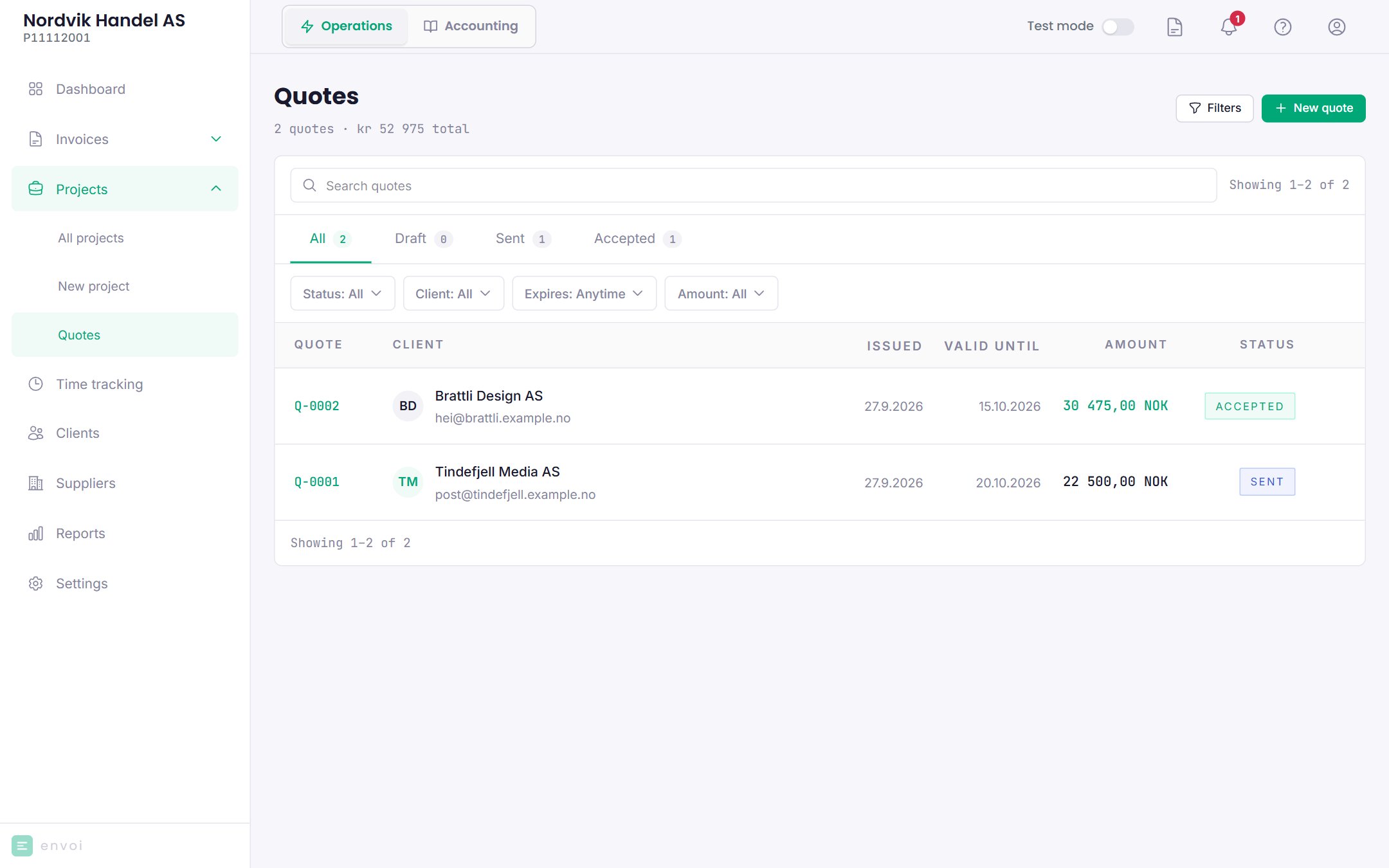
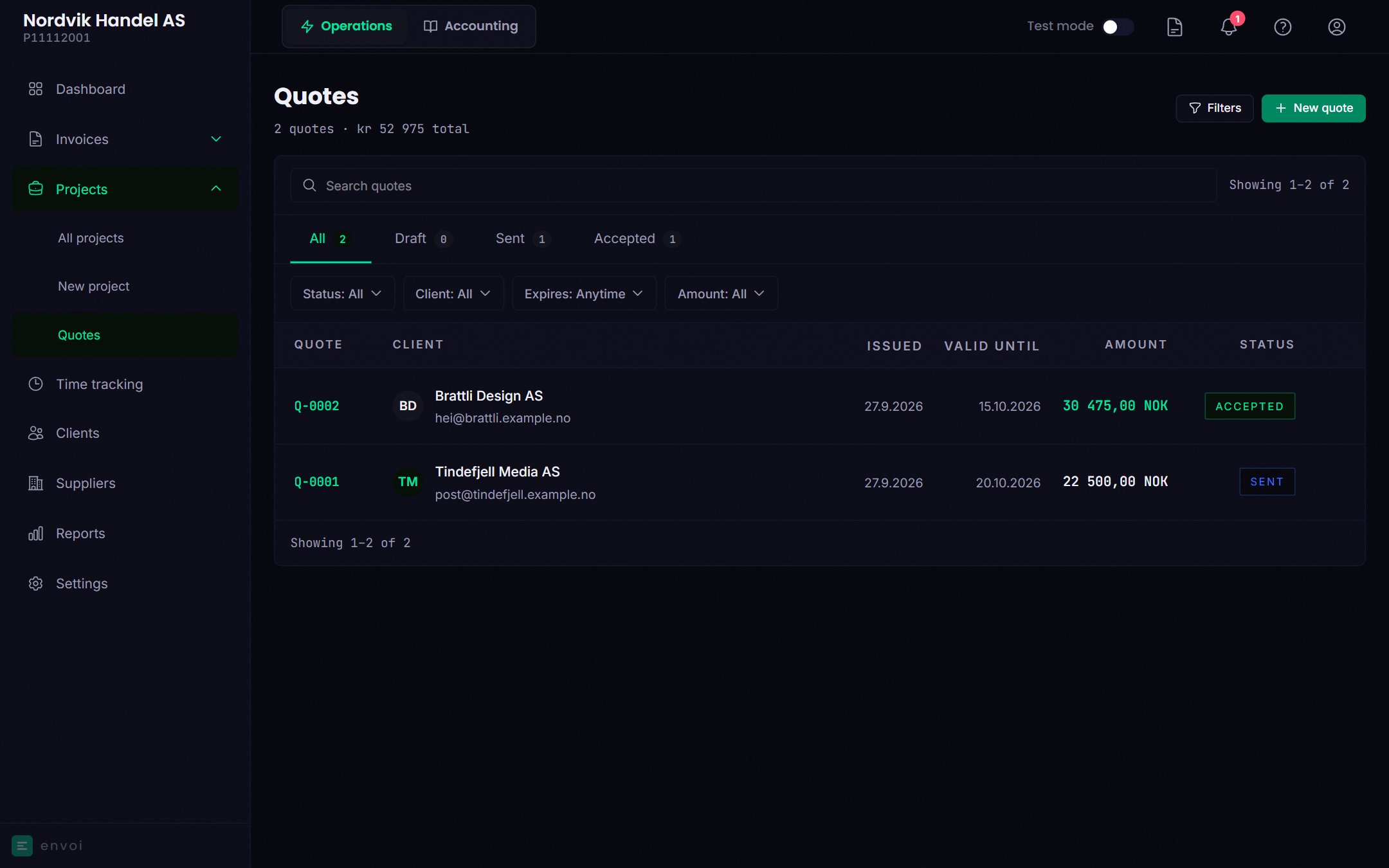
You find quotes under **Projects**, **Quotes**.
 ## Create a quote
Choose **New quote**.
Choose a customer and add the lines, as on an invoice.
* **Valid until**: how long the quote is valid. The default is 14 days.
* **Reference**: for example the customer's order number.
* **Personal message**: shown in the email and on the customer's page.
Choose **Create quote**. The quote gets a number, for example Q-0003, and is saved as a draft.
Open the quote and choose **Send email**. The customer must have an email address.
## What the customer sees
The customer gets an email with the quote as a PDF and a link to a page of its own. There the customer can see the quote, download it, and choose **Accept quote** or **Decline**, with a reason if they like. The customer does not need to log in.
## When the customer answers
* **If the customer accepts**, the quote gets the status **Accepted**, and Envoi creates an invoice draft with the same customer and lines. You are notified, and you find the draft with **View invoice** on the quote.
* **If the customer declines**, the quote gets the status **Declined**, and you are notified with the reason.
If the customer answers by phone, email or in a meeting, you can record the answer yourself: choose **More**, **Mark as accepted** or **Mark as declined**, and fill in who answered, when and how.
## Statuses
| Status | Meaning |
| - | - |
| Draft | Not sent |
| Sent | Sent to the customer, waiting for an answer |
| Accepted | The customer has accepted |
| Declined | The customer has declined |
| Expired | The valid until date has passed without an answer |
A quote that has not been answered by **Valid until** becomes **Expired**. You are notified, but the customer gets no reminder.
## Edit and delete
* A quote can be edited as long as it is **Draft** or **Sent**. If you edit a sent quote, the customer sees the change on their page right away, but the PDF the customer got by email is the old one. Send the quote again if that matters.
* Only drafts can be deleted.
## Turn a quote into a project
When a quote has been accepted, you can choose **Convert to project**. Envoi creates a new project with the customer, and uses the quote amount as the budget. See [Projects](/en/prosjekter/prosjekter).
## Create a quote
Choose **New quote**.
Choose a customer and add the lines, as on an invoice.
* **Valid until**: how long the quote is valid. The default is 14 days.
* **Reference**: for example the customer's order number.
* **Personal message**: shown in the email and on the customer's page.
Choose **Create quote**. The quote gets a number, for example Q-0003, and is saved as a draft.
Open the quote and choose **Send email**. The customer must have an email address.
## What the customer sees
The customer gets an email with the quote as a PDF and a link to a page of its own. There the customer can see the quote, download it, and choose **Accept quote** or **Decline**, with a reason if they like. The customer does not need to log in.
## When the customer answers
* **If the customer accepts**, the quote gets the status **Accepted**, and Envoi creates an invoice draft with the same customer and lines. You are notified, and you find the draft with **View invoice** on the quote.
* **If the customer declines**, the quote gets the status **Declined**, and you are notified with the reason.
If the customer answers by phone, email or in a meeting, you can record the answer yourself: choose **More**, **Mark as accepted** or **Mark as declined**, and fill in who answered, when and how.
## Statuses
| Status | Meaning |
| - | - |
| Draft | Not sent |
| Sent | Sent to the customer, waiting for an answer |
| Accepted | The customer has accepted |
| Declined | The customer has declined |
| Expired | The valid until date has passed without an answer |
A quote that has not been answered by **Valid until** becomes **Expired**. You are notified, but the customer gets no reminder.
## Edit and delete
* A quote can be edited as long as it is **Draft** or **Sent**. If you edit a sent quote, the customer sees the change on their page right away, but the PDF the customer got by email is the old one. Send the quote again if that matters.
* Only drafts can be deleted.
## Turn a quote into a project
When a quote has been accepted, you can choose **Convert to project**. Envoi creates a new project with the customer, and uses the quote amount as the budget. See [Projects](/en/prosjekter/prosjekter).