

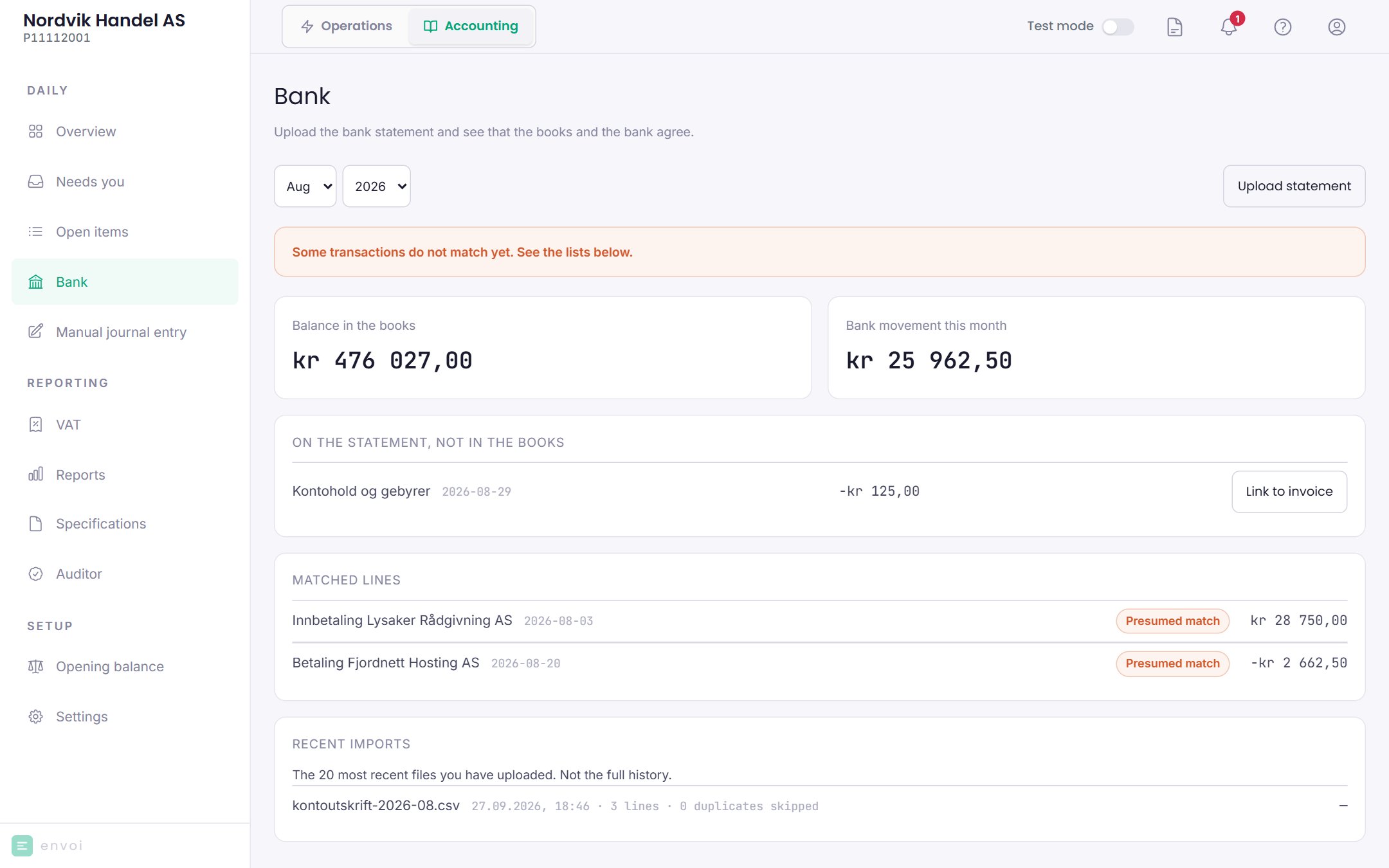
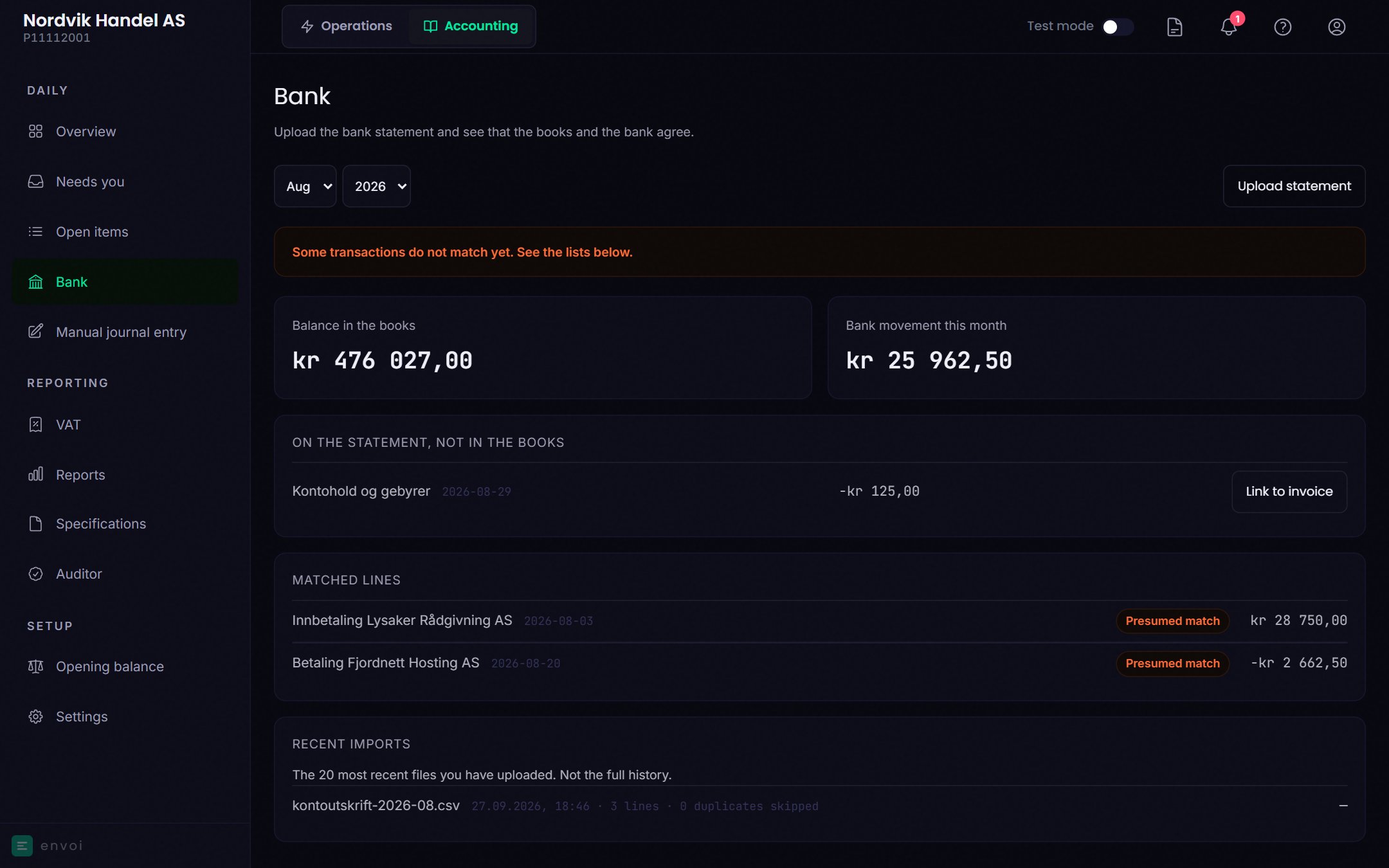
Upload the bank statement
1
Download from online banking
Export the bank statement from your online bank as CSV or CAMT.053 (XML). The file can be up to 1 MB.
2
Choose the month
Go to Accounting, Bank, and choose the month under Period.
3
Upload
Choose Upload statement and select the file. Envoi shows how many transactions were imported, and how many were skipped because they had been imported before.
What the CSV file must contain
What the CSV file must contain
The file must have a header row with a date column and either one amount column or two columns for money out of and into the account. The separator can be a semicolon or a comma. An example:Dates can be written as 03.08.2026, 2026-08-03, 03/08/2026 or 03.08.26. Amounts can have up to two decimals.
Read the result
At the top you see whether the month agrees:- The books and the bank agree for this month.
- Some transactions do not match yet. See the lists below.
- In the books, not on the statement: something is posted, but is not on the bank statement.
- On the statement, not in the books: something happened in the bank, but is not posted.
Link a line to an invoice
If a payment in or out is listed under On the statement, not in the books, you can choose Link to invoice and pick the invoice it belongs to. The invoice must have exactly the same amount outstanding. If you took the opening balance from a SAF-T file, you can also link the line to a Balance from previous system. The amount can then be less than what remains, but not more. A manual match can be removed with Remove the match. You must write why. The payment is then reversed, and everything stays in the audit trail.Good to know
- The page shows bank account 1920.
- The same file cannot be uploaded twice.
- In a CAMT.053 file, KID is read only from the structured KID field, not from free text.
- Under Recent imports you see the last 20 files you uploaded.
- A closed month cannot be matched or changed.