

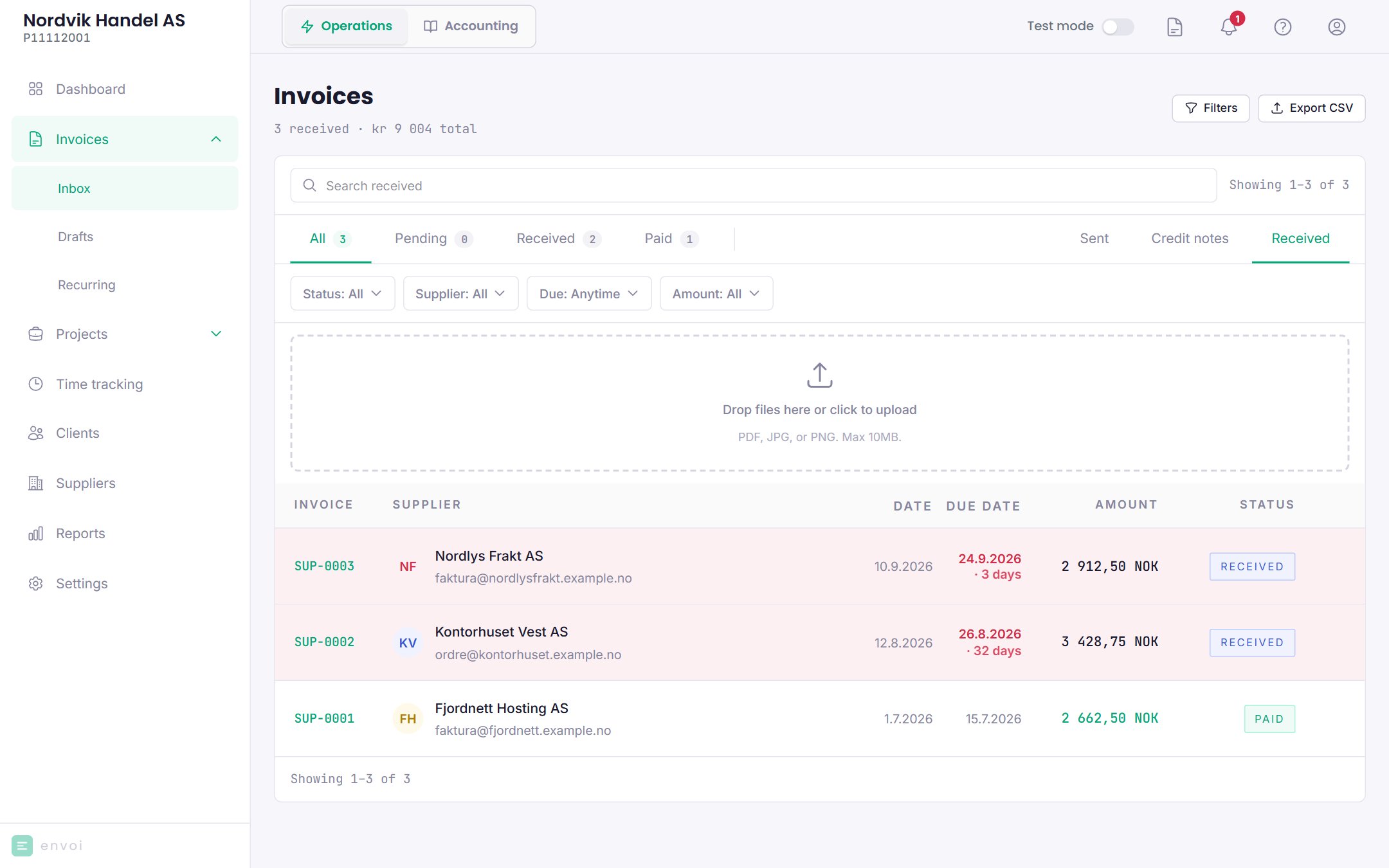
Three ways to get them in
- Upload
- Take a photo
- Email
Drag the file onto the page, or click to choose it. You can upload PDF, JPG or PNG, one file at a time.
Saga reads the invoice
When the invoice has come in, Saga reads it and fills in the fields: supplier, invoice number, dates, KID, account number, currency and lines with VAT. It usually takes a few seconds. If Saga cannot read the document, you fill in the fields yourself. You can also choose Try reading it again.Review and confirm
1
Check the supplier
If the supplier already exists, it is linked automatically. Otherwise Envoi suggests suppliers with similar names (Did you mean one of these?), or creates a new one.
2
Check the fields
Look over the invoice number, dates, KID and account number.
3
Choose VAT on each line
Every line must have a VAT treatment before you can confirm. If the supplier appears to be foreign, Envoi shows a hint about reverse charge (VAT code 86 or 88).
4
Confirm
Choose Confirm and save. The invoice gets the status Received.
When you have paid
Open the invoice and choose Mark as paid. Choose the date the money went out. The full amount is recorded as paid. If accounting is turned on, the payment is posted.Other options
- Reject: the invoice is not to be paid.
- Delete: only possible before the invoice is confirmed.
If you reject an invoice that has already been posted, only the status changes. If the supplier invoice is wrong, ask the supplier for a credit note. If you remove a payment that has been posted, the payment can be reversed.