When the customer has paid, you record the payment on the invoice. The invoice is then marked as paid, and the books are updated.

How to do it

1

Open the invoice

Choose Record payment under Actions.
2

Fill in the date and amount

  • Payment date: the date the money came in. It cannot be in the future.
  • Amount received: filled in with what remains. Change it if the customer has paid less.
Below the fields you see whether the payment settles the invoice, or how much remains afterwards.
3

Record

Choose Record payment.

Partial payment

If the customer pays only part of the amount, the invoice is marked Partly paid, with the amount that remains. You see the payments in a separate list on the invoice. Record the next payment the same way. When everything is paid, the invoice is marked Paid.
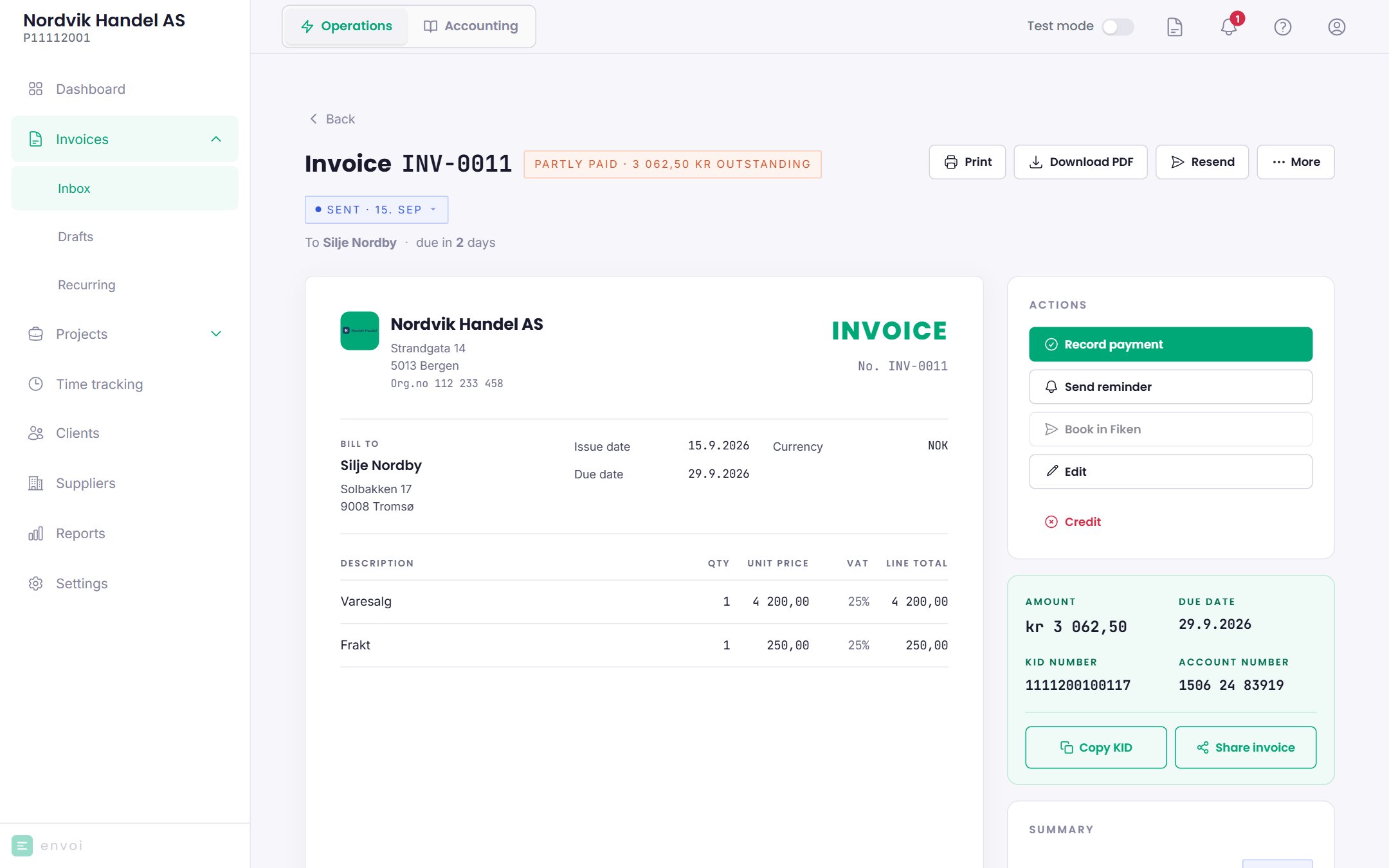
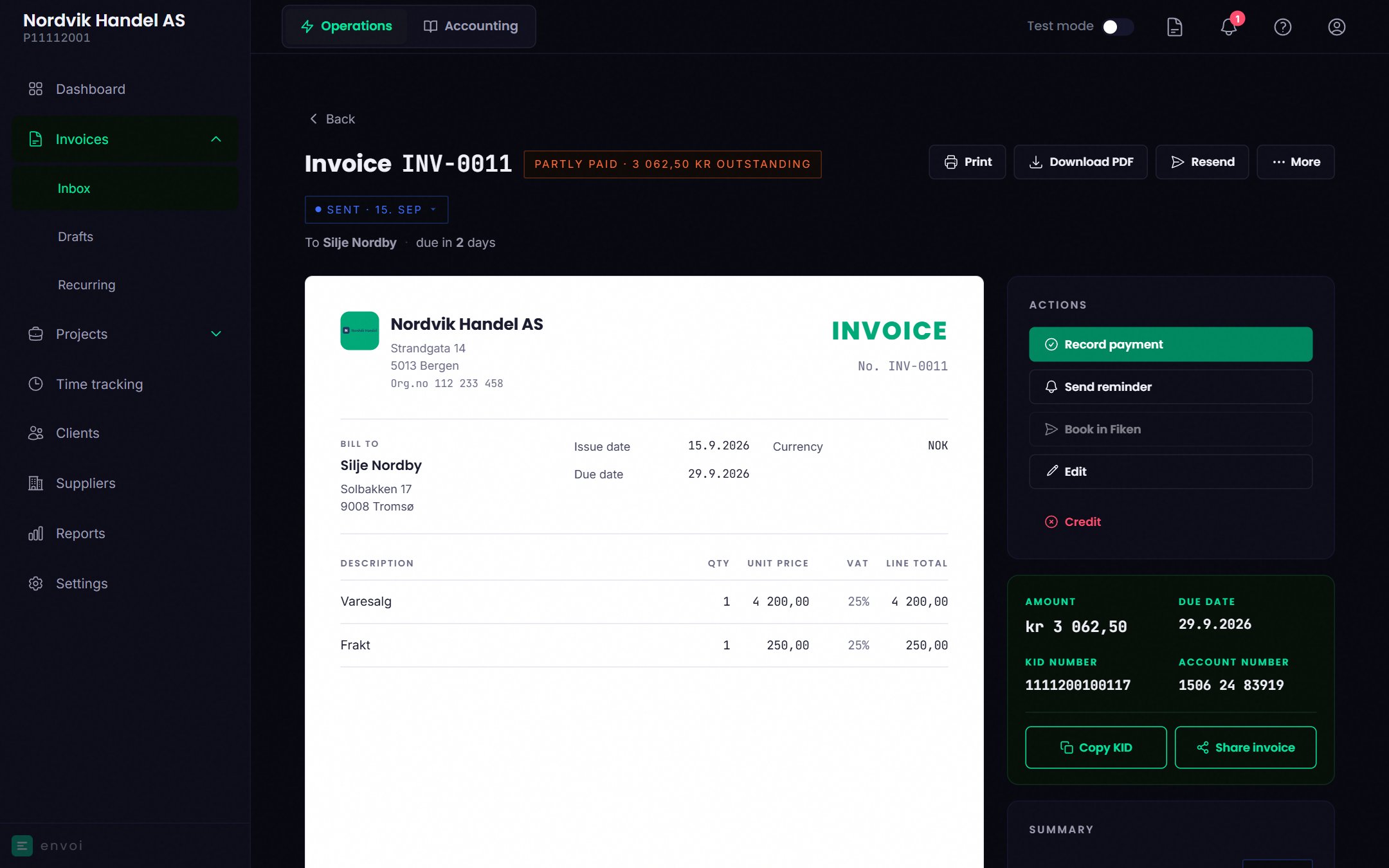
A partly paid invoice with the list of payments and the amount that remainsA partly paid invoice with the list of payments and the amount that remains
Reminder fees and interest are not included in the amount that remains.

Rules

  • You cannot record more than what remains.
  • The amount can have at most two decimals.
  • A payment can only be recorded on a sent invoice that is not already paid or credited.

Removing a payment

If you recorded something wrong, choose Remove next to the payment. This only works as long as the invoice is not paid in full. Once the invoice is paid and posted, the mistake must be corrected in the books. See Correcting mistakes.

In the books

If accounting is turned on, the payment is posted when the invoice is paid in full, dated the last payment. A partial payment is not posted until then. See Automatic bookkeeping.
Record each payment in one place only: here on the invoice, or with Link to invoice under Bank. Not both.