

- Inbox: all invoices that have been sent, and credit notes.
- Drafts: invoices that have not been sent yet.
- Recurring: invoices that are sent automatically at regular intervals. See Recurring invoices.
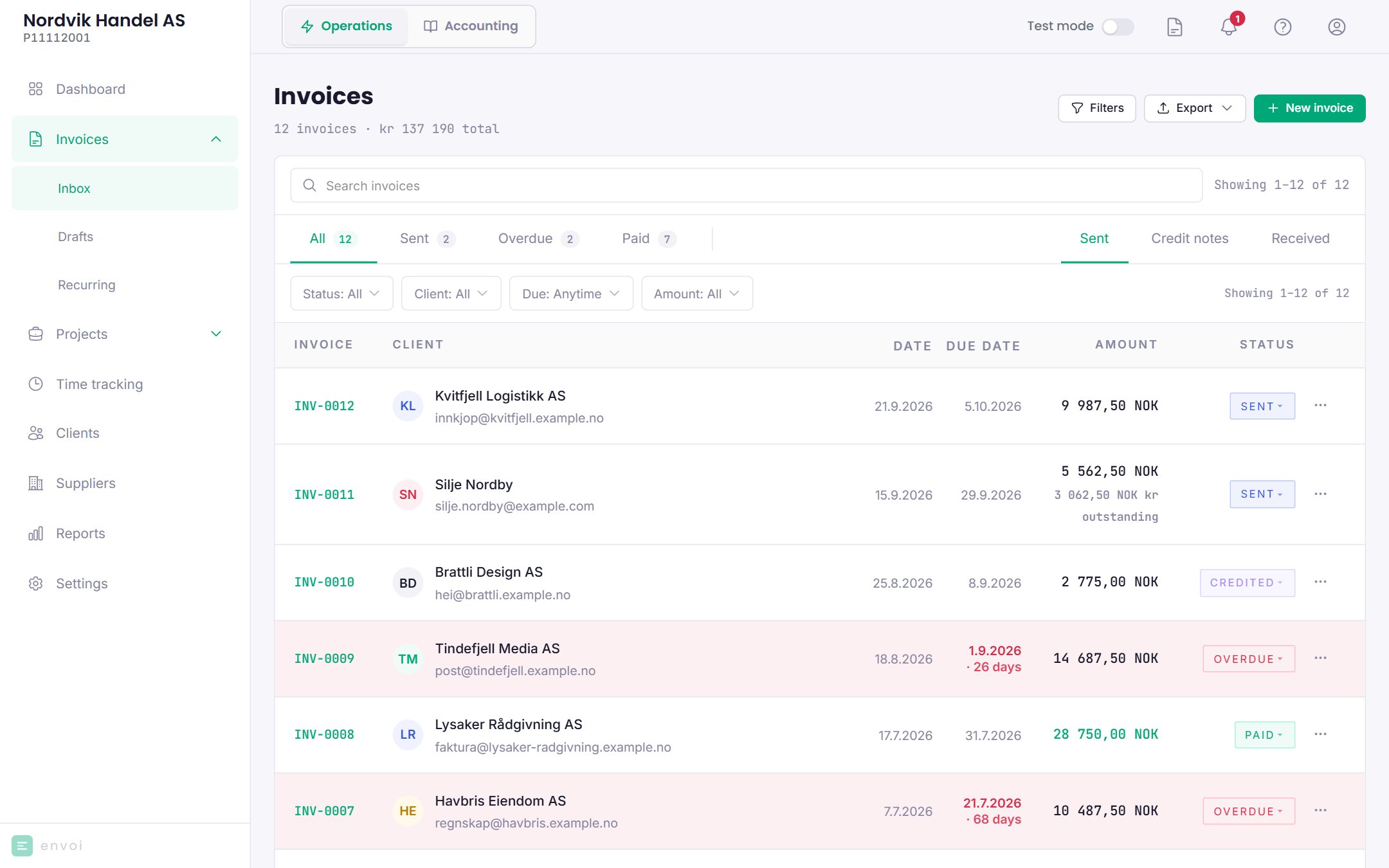
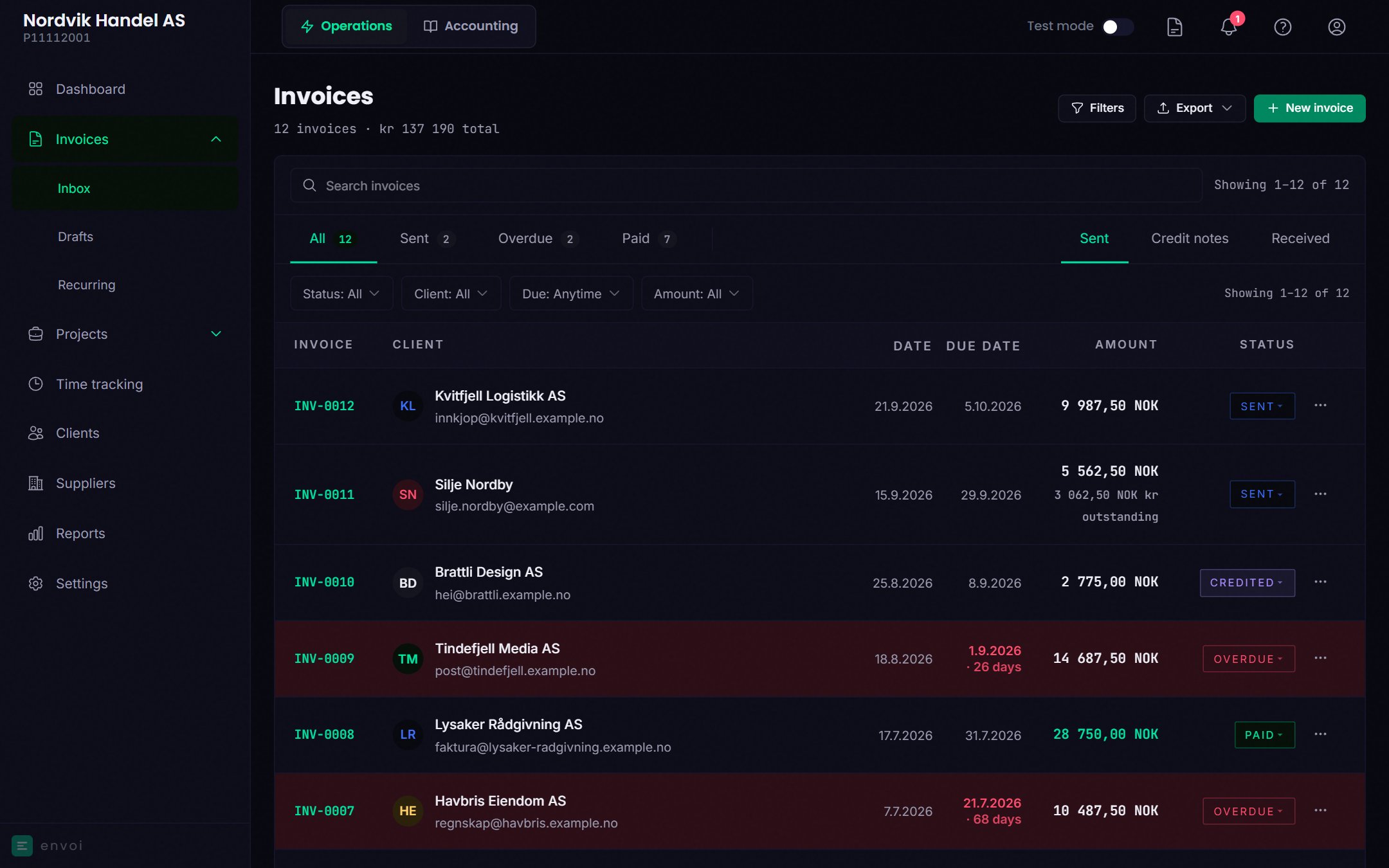
Statuses
Next to the status there may be a tag:
- Partly paid: the customer has paid part of the amount. See Recording payments.
- Disputed: you have marked that the customer disagrees with the claim.
- Dunning paused: automatic reminders are paused for this invoice.
Drafts and numbering
Save as draft saves the invoice without sending it. A draft has no invoice number or KID. The invoice number, for example INV-0012, and the KID number are assigned when the invoice is sent, and the numbering continues without gaps. The new invoice form also saves what you type as you go, in the browser (Autosaved at). It is saved only on the computer and in the browser you are using. To continue on another computer, save as a draft. Drafts can be edited and deleted from Drafts.A sent invoice
A sent invoice cannot be edited or deleted. If something is wrong, you create a credit note and send a new invoice.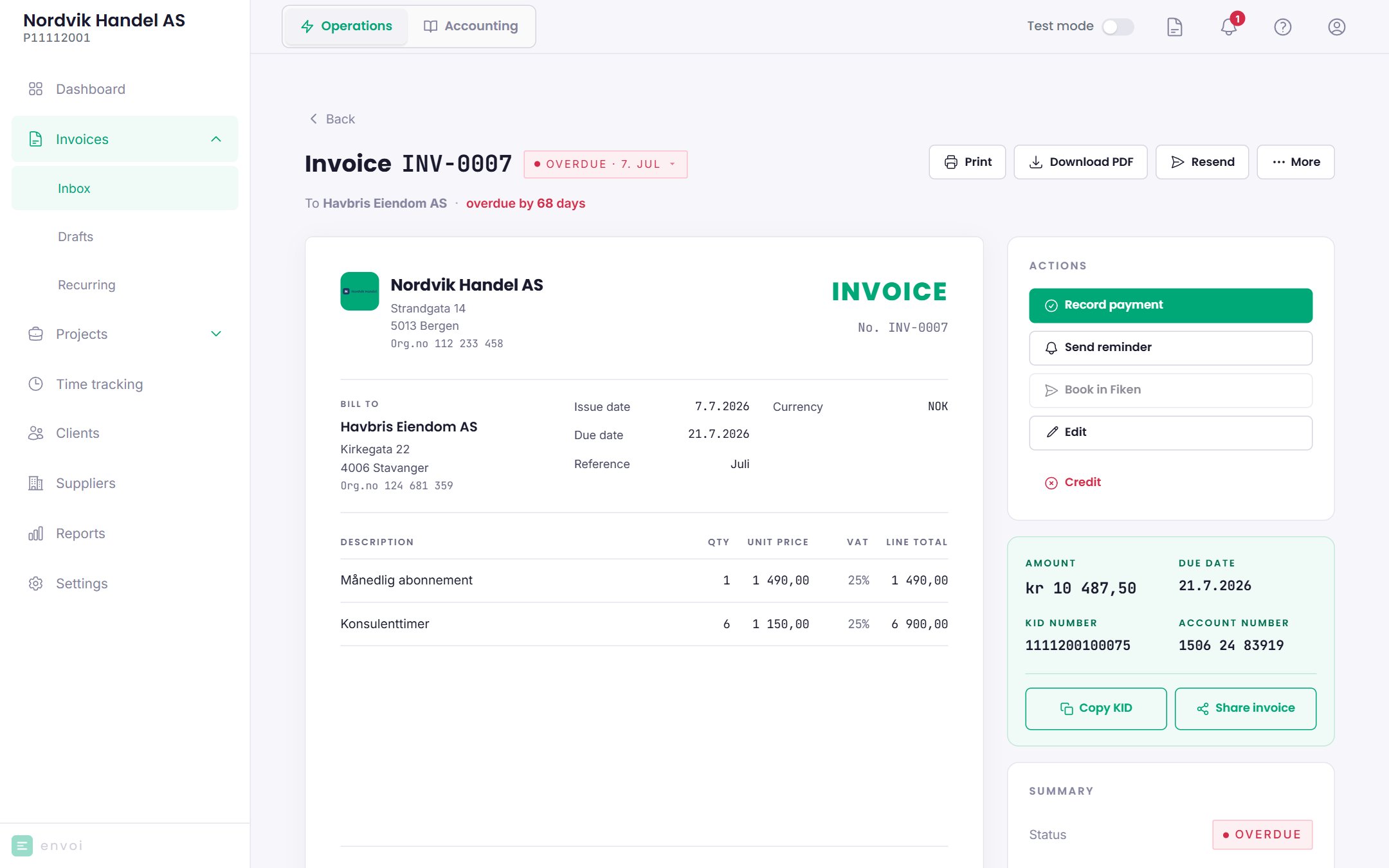
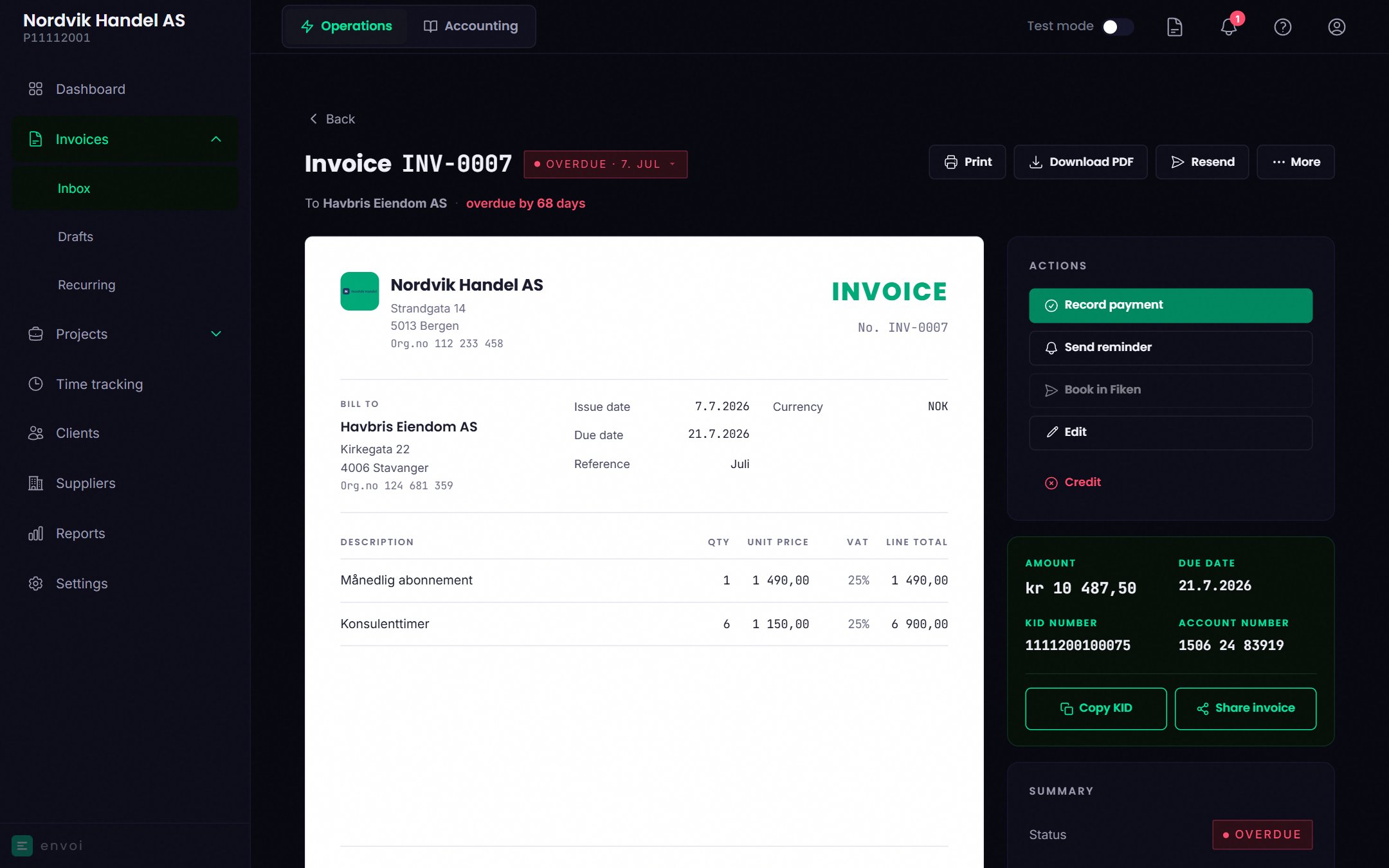
Under More you also find:
- Download EHF: the invoice as an EHF file (Peppol BIS 3.0). EHF can only be created for companies in Norway with an organisation number, and not when the invoice has lines with 0% VAT. Envoi shows why when the option is greyed out. Sending through the Peppol network is coming before 2027.
- Export CSV
- Make recurring: creates a recurring invoice with the same content.
- Mark as disputed and Pause auto-dunning. See Reminders and collection warnings.
To send the invoice by email, the customer must have an email address. If the customer has none, you can download the PDF and send it yourself.